

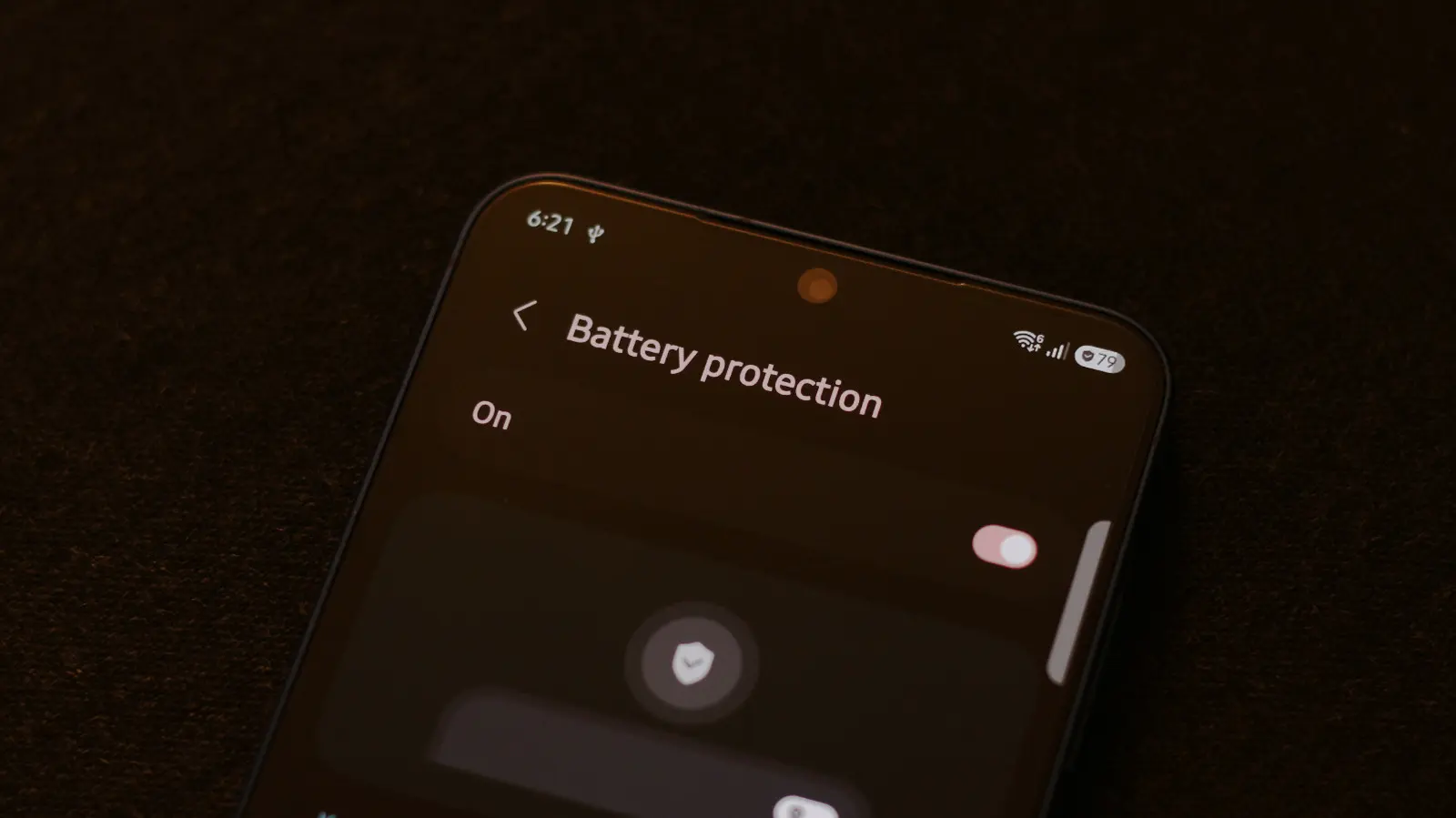
Over the years, the differences between Android and iOS have gradually narrowed. Both operating systems now support many of the same apps, offer very similar features, and often use the same UI and UX ideas for ease of use. A distinguishing factor, though, is how the two operating systems handle the status bar. It is far more informative on Android phones, giving you glanceable information about app notifications in addition to system indicators like network status and the battery percentage. Every manufacturer has a slightly different set of icons they like to use in the status bar. On Samsung phones, for instance, you might sometimes spot a shield icon next to your battery percentage. This new indicator was added in One UI 7 and serves as a visual reminder that the Battery Protection option is turned on.
The Battery Protection feature, which has also started appearing on other Android and iOS devices, is designed to slow down battery degradation. It works by setting a limit on how much your phone charges. If you have a limit of 80% set, your phone will stop charging when it reaches that level. This prevents the lithium-ion battery from staying at a high state of charge for extended periods, which is one of the primary causes of capacity loss over time. Lithium-ion batteries are the standard in modern smartphones because of their high energy density and relatively low weight. However, they naturally degrade with each charge cycle. The degradation process is accelerated when the battery is kept near its maximum voltage for too long or is exposed to excessive heat. By capping the charge at a certain percentage, users can significantly extend the useful life of their phone's battery.
Understanding Battery Protection Modes
Samsung's Battery Protection feature offers three distinct modes to suit different usage patterns. The first is Basic mode, which allows the battery to discharge down to 95% before resuming charging back to 100%. This mode is useful for users who want a minimal impact on daily battery availability while still gaining some longevity benefits. The second is Maximum mode, which lets you set a hard charging limit anywhere from 80% to 95%. This is the most aggressive option and is recommended for users who rarely need the full battery capacity, such as those who end their day with 30% or more remaining. The third mode is Sleep Time Protection. This mode is smarter and learns your sleep patterns. It keeps the battery at 80% until shortly before you typically wake up, then charges to 100% so you start the day with a full charge without leaving the battery at 100% overnight. This mode is ideal for people who charge their phones overnight and want the convenience of a full battery in the morning with minimal degradation.
The Science Behind Battery Degradation
To fully appreciate the Battery Protection feature, it helps to understand the chemistry inside your phone. Lithium-ion batteries consist of two electrodes: a positive cathode and a negative anode, separated by an electrolyte. When you charge the battery, lithium ions move from the cathode to the anode. When you discharge, they move back. Each full cycle wears the materials slightly, but the most damage occurs at the extremes: when the battery is fully charged (100%) or completely drained (0%). At high charge levels, the voltage is at its peak, which accelerates side reactions that form a layer of deposits on the electrodes, reducing capacity. Conversely, deep discharges can cause the internal resistance to increase over time. Modern battery management systems try to keep the battery in a comfortable 'sweet spot' between 20% and 80%. Most electric vehicle manufacturers, for example, recommend limiting daily charging to 80% to maximize battery life. Samsung's implementation follows the same principle.
It is also worth noting that temperature plays a critical role. Lithium-ion batteries degrade faster when exposed to high heat, especially during charging. If you habitually charge your phone in a hot environment or run intensive apps while it's plugged in, the added thermal stress can further accelerate aging. The Battery Protection feature does not directly manage temperature, but by limiting the charge, it reduces the internal resistance and heat generation at high states of charge. Additionally, modern Samsung phones include thermal throttling and adaptive charging to mitigate heat, but users should still avoid leaving their phones in direct sunlight or charging under pillows.
Practical Benefits and Trade-offs
Enabling Battery Protection does mean your phone now has less battery to offer you because it is not fully charged. For users who often end the day with 20% to 30% left, this is a good trade-off: you give up a small amount of daily capacity in exchange for a longer overall battery lifespan. However, if you are already charging more than once a day, preserving a bit of long-term battery health may not be worth the sacrifice right now. In such cases, you might prefer to use Basic or Sleep Time Protection instead of Maximum mode. It is also important to consider that smartphone batteries are typically designed to retain around 80% of their original capacity after 500 complete charge cycles, which for most people translates to about two years of typical use. After that, you may notice a decrease in battery life. Using Battery Protection can extend this period significantly, potentially keeping your battery health above 90% after two years.
If you tap the Battery Protection option on your Samsung phone, you can actually change how aggressively this feature limits charging. The Basic mode lets the battery level drop to 95% before it starts charging to 100% again. The Maximum option will set a hard limit of your choosing. Samsung's Sleep Time Protection mode is better suited for those who leave their phones plugged in overnight. It learns your usage patterns, keeps the battery at 80%, and only resumes charging to 100% shortly before you wake up. This way, you get the benefit of reduced battery stress during the night without waking up to a partially charged phone.
Additional Status Bar Icons
You may even occasionally spot a leaf symbol inside your battery icon. This indicates that your phone is in power-saving mode, which adjusts things like your screen's brightness and refresh rate, and optimizes background activities to make your phone last a bit longer. Power-saving mode does not directly protect battery health, but it reduces power consumption, meaning you need to charge less frequently, which indirectly reduces cycle count. To view more information about how your Samsung phone handles charging and power consumption, navigate to Settings > Battery. From there, you can access Battery Protection, power-saving settings, and detailed statistics about your battery usage and health. Samsung also provides an estimated battery health percentage in some models, though this feature may vary by region and software version.
Comparing with Other Manufacturers
Samsung is not alone in offering such features. Apple introduced Optimized Battery Charging in iOS 13, which learns your daily charging routine and delays charging past 80% until just before you need it. Google's Pixel phones have similar features under the name Adaptive Charging. Xiaomi, OnePlus, and other Android manufacturers also offer customizable charging limits. The shield icon is Samsung's unique way of indicating that the feature is active, making it easy for users to see at a glance. This attention to user interface details is part of Samsung's One UI philosophy, which aims to make complex features accessible and intuitive.
For those who are particularly concerned about battery health, there are third-party apps that can provide detailed battery statistics, but Samsung's built-in tools are already quite comprehensive. The Battery section in settings shows app usage, screen-on time, and charging history. You can also set alarms or routines to remind you to unplug when the battery reaches a certain level. Some users prefer to use smart plugs or chargers with timers to avoid overcharging, but the built-in protection eliminates the need for such workarounds.
Long-Term Considerations
While Battery Protection is a useful tool, it is not a magic bullet. All batteries degrade over time, regardless of how carefully you treat them. Heat is the biggest enemy, so avoid using your phone while it's charging, especially for intensive tasks like gaming or video streaming. Also, avoid exposing your phone to extreme temperatures, both hot and cold. If you store your phone for a long period, such as when you upgrade to a new device, experts recommend keeping the battery at around 50% charge in a cool, dry place. This minimizes degradation during storage.
Another aspect to consider is the battery replacement cost. Most modern Samsung phones have sealed batteries that are not user-replaceable. Replacing the battery through an authorized service center can be expensive, often costing anywhere from $50 to $100 or more depending on the model. By using Battery Protection, you can postpone the need for a replacement by months or even years. For users who plan to keep their phone for three to four years, this feature is highly recommended. For those who upgrade every year or two, the benefit is less pronounced, but it still helps maintain resale value, as a phone with higher battery health is more attractive to buyers.
In conclusion, the shield icon on your Samsung phone is a helpful indicator that Battery Protection is active. Understanding what it does and how to configure it allows you to make an informed decision about whether to enable it. Whether you choose Maximum, Basic, or Sleep Time Protection, the goal is the same: to extend the lifespan of your phone's battery. Combined with good charging habits and thermal management, this feature can help you get the most out of your device for years to come.
Source: SlashGear News