

Smart TVs have become the cornerstone of modern home entertainment, offering more than just streaming services and app ecosystems. They now double as central hubs for smart home management, allowing users to control lighting, thermostats, and even security cameras. One of the most underutilized features is the ability to view a live feed from a Ring doorbell or security camera directly on the television screen. This capability transforms the living room into a command center for home security, providing a larger, more convenient display for monitoring entryways, backyards, or other areas covered by Ring devices.
Understanding Compatibility
Before diving into the setup process, it's essential to determine whether your smart TV is compatible with Ring cameras. The most straightforward path is through an Amazon Fire TV device. Fire TV is built into many televisions, such as those from Toshiba, Insignia, and Amazon's own Fire TV Edition sets. Additionally, Samsung smart TVs equipped with the SmartThings platform natively support Ring integration. If your TV lacks either of these ecosystems, you can still achieve the functionality by purchasing a Fire TV Stick—a relatively inexpensive HDMI dongle that plugs into any TV with an available HDMI port. Once connected, the Fire TV Stick provides access to the same Alexa voice control and skill ecosystem as built-in Fire TV models.
Preparing Your Ring System
The first step is to ensure your Ring devices are properly set up and configured within the Ring app. This includes installing the doorbell or camera, connecting it to your home Wi-Fi network, and registering it in your account. If you have multiple Ring devices, they will all be visible in the app. It's also wise to test the feed on your phone to confirm the camera angle, motion detection settings, and video quality are satisfactory. Once the Ring system is operational, you can move on to linking it with your TV. This process involves two main pathways: using Amazon Alexa (for Fire TV devices) or using the Samsung SmartThings app (for Samsung TVs).
Connecting via Amazon Fire TV
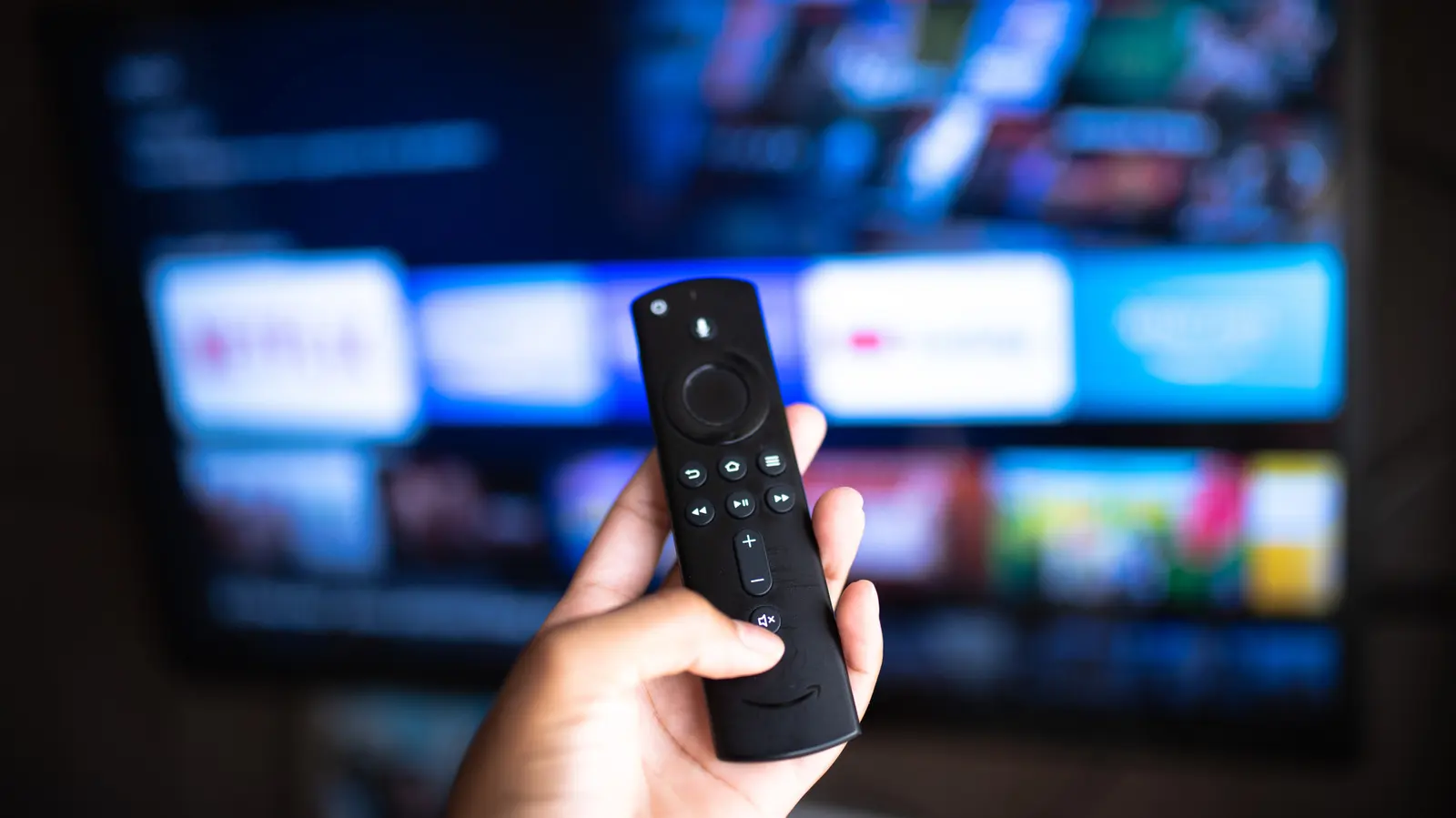
If your TV runs on Amazon Fire TV, the integration relies on Amazon's Alexa voice assistant and the Ring skill. Launch the Amazon Alexa app on your smartphone. Tap the 'More' icon at the bottom right corner of the screen to open the menu. From that menu, select 'Skills & Games' and search for 'Ring'. Locate the official Ring skill published by Ring LLC and tap 'Enable to Use'. You will be prompted to sign in to your Ring account. After entering your credentials, the Alexa app will link the two services. This linkage allows Alexa to discover all your Ring devices. Now, go to your smart TV and press the Alexa button on your Fire TV remote (or say 'Alexa' if your remote has hands-free support). Speak a command such as 'Show the front door camera' or 'Display the garage camera.' Within seconds, your television will display the live video feed from that specific Ring camera. You can also switch between cameras by specifying the name of each device as it appears in the Ring app. For hands-free control, ensure your Fire TV is set up with an Echo device or the remote's microphone is active. This method works seamlessly with any Ring device, including the Ring Video Doorbell Pro, Ring Stick Up Cam, and Ring Floodlight Cam.
Connecting on a Samsung Smart TV
For owners of Samsung smart TVs, the integration path uses the SmartThings platform. Open the SmartThings app on your television or on your phone (whichever is easier for initial setup). If you haven't already, sign in to your Samsung account. In the app, navigate to the 'Add Device' or 'Device' tab and select 'Add Device' manually. Choose 'Doorbells' from the category list, then select 'Ring' from the available brands. The app will request your Ring account credentials. Enter the same email and password used for the Ring app. After a few moments, the two accounts will be linked. Now, go back to the Ring app on your phone. Open the settings for your doorbell or camera and verify that the Samsung TV is listed under authorized devices. Typically, this authorization happens automatically, but if you encounter issues, manually approving the connection within the Ring app can resolve them. Once linked, you can access your Ring camera feed directly from the SmartThings interface on your TV. Some Samsung TVs also allow voice commands through their built-in Bixby assistant, though the most reliable method is through the SmartThings dashboard. You can create routines to have the camera feed appear when motion is detected or when someone rings the doorbell.
Expanding the Smart Home Ecosystem
The ability to view security cameras on your TV is part of a broader trend toward integrated smart homes. Many users pair Ring cameras with other smart devices like smart lights, locks, and thermostats. For example, you can set up a routine that turns on the living room lights and displays the front door camera feed on the TV when the doorbell rings at night. Amazon Alexa and Samsung SmartThings both support complex routines that involve multiple devices. Additionally, you can use your TV as a secondary display for other security systems, such as Arlo, Nest, or Wyze, provided you install their respective skills or apps. However, the Ring integration remains one of the most popular due to Ring's wide adoption and the simplicity of the setup process. For those concerned about privacy, it's worth noting that the camera feed is only shown when you actively request it or when a routine triggers it. The TV does not passively broadcast your camera footage. You can also disable the skill or remove the device connection at any time through the Alexa or SmartThings app.
Troubleshooting Common Issues
If you encounter problems during setup, several common fixes can help. First, ensure both your Ring device and your TV are connected to the same Wi-Fi network. Different networks or subnets can prevent discovery. Check that you are using the correct Ring account credentials—many users have multiple accounts for different properties. If the camera feed appears but then freezes or is low-resolution, check your internet upload speed. Ring cameras require a stable connection with at least 2 Mbps upload speed for standard definition and 4 Mbps for HD. If you experience delays, try restarting your router and your TV. On Fire TV, you can force-stop the Alexa app and relaunch it. Occasionally, the Ring skill may need to be re-enabled. On Samsung TVs, ensure the SmartThings app is updated to the latest version. If the camera feed does not appear despite following all steps, try removing and re-adding the device in the SmartThings app. Another tip: some third-party apps like 'Ring for Fire TV' are available on the Amazon Appstore, but the official Alexa integration is recommended for reliability. For users with older Ring devices that do not support the latest protocols, a software update in the Ring app might be necessary.
Alternative Methods and Future Trends
Beyond the official integrations, some tech enthusiasts use home automation platforms like Home Assistant or IFTTT to pipe Ring feeds to their TVs using casting protocols like Chromecast or AirPlay. However, these methods are more complex and not officially supported. As smart TV operating systems evolve, we can expect even deeper integration. Android TV-based TVs (like those from Sony, TCL, and others) may also gain native Ring support through the Google Assistant ecosystem. Similarly, Apple's HomeKit Secure Video can display feeds on Apple TV, but Ring only offers limited HomeKit support. For now, Fire TV and Samsung SmartThings provide the most user-friendly experiences. Additionally, some smart TVs offer a 'Picture-in-Picture' mode, allowing you to watch a show while monitoring the camera feed in a corner of the screen. This feature is especially useful for parents wanting to keep an eye on a baby room or for pet owners checking in on their animals. The convenience of having a security camera feed on the largest screen in the house cannot be overstated—it provides a clear, immediate view that is far more comfortable than squinting at a phone screen.
Privacy and Security Considerations
When connecting any smart home device to a TV, it's important to consider privacy and security. Ensure your home Wi-Fi network is secured with WPA2 or WPA3 encryption. Change default passwords on all devices, including your TV and router. Regularly update firmware for Ring cameras and smart TVs to patch vulnerabilities. Be aware that voice assistants like Alexa and Bixby are always listening for wake words—consider muting the microphone if you are not actively using them. You can also review the permissions granted to the Ring skill in the Alexa app and revoke them if you no longer need the integration. Some users prefer to disable the camera feed display when guests are present. Additionally, Ring's end-to-end encryption options can add another layer of protection, though this may affect live viewing on some third-party devices. Always read the privacy policies of the platforms you use.
Advanced Features and Customization
Once you have the basic connection working, you can explore advanced features. On Fire TV, you can use the 'Ring Alarm' skill to arm or disarm your Ring security system with voice commands. You can also set up 'Alexa Hunches' to automatically show the camera when it detects a familiar face or motion. On Samsung TVs, the SmartThings app allows you to receive push notifications for specific events, and you can create shortcuts to quickly pull up camera feeds without navigating menus. Some newer TVs support 'Auto View' where the TV switches to the camera feed when motion is detected, though this requires compatible hardware. For multi-camera setups, you can create a 'Camera Grid' in the Alexa app to view four feeds simultaneously on your TV. This is particularly useful for monitoring multiple entry points or outdoor areas. Customization also extends to naming your cameras clearly in the Ring app—using names like 'Front Door,' 'Backyard,' and 'Garage' makes voice commands more intuitive.
In summary, the ability to view your Ring camera feed on a smart TV is a powerful feature that enhances home security and convenience. Whether you use an Amazon Fire TV device or a Samsung SmartThings-compatible television, the setup process is straightforward and only requires a few minutes of configuration. By expanding the role of your television from a passive entertainment device to an active security monitoring station, you gain peace of mind and a new level of control over your home environment. With the continued expansion of smart home ecosystems, such integrations are likely to become even more seamless and feature-rich in the years ahead.
Source: SlashGear News